How We Fix DTF Artwork When We Don’t Have the Right File Format (Step-by-Step, Free)
TABLE OF CONTENTS
- Understanding DTF Artwork Requirements (Before We Touch the File)
- Step 1: Convert Any Artwork File to a High-Quality PNG (Free)
- Step 2: Upload the PNG into the DTF Gang Sheet Builder
- Step 3: Why We Must Work with PNG Inside the Builder
- Step 4: Upscale and Sharpen the DTF Artwork Inside the Gang Sheet Builder
- Step 5: Use One-Click Background Removal for Cleaner DTF Transfers
- Step 6: Edit Colors with the Built-In Color Tool (Great for Seasonal Designs)
- Step 7: Zoom In and Check the Details Before Ordering
- Step 8: Save, Reorder, and Take Advantage of the Gang Sheet Builder Features
- Important DTF Artwork Tips and Common Mistakes to Avoid
- Why We Like Using the Transfer Superstars DTF Gang Sheet Builder for Artwork Fixes
- Simple Checklist: How We Fix DTF Artwork When the File Isn’t “Right”

Understanding DTF Artwork Requirements (Before We Touch the File)
Before we start clicking buttons, it helps to know what DTF printing needs from our artwork. Once we understand this, the rest of the process makes a lot more sense.
1. File type for the Gang Sheet Builder
Transfer Superstars’ DTF Gang Sheet Builder only lets us edit PNG files. The tool exports the final gang sheet to them as one big PNG, so any image we want to edit inside the builder must also be a PNG first.
This means:
- We can upload other formats (like a PDF), but
- We can only edit the PNG version on the gang sheet.
So if a client sends a PDF or JPG, our first job is to convert it to a PNG. We’ll show how in a moment.
If we are doing strict CMYK color matching or a project where brand colors must be perfect, Transfer Superstars recommends using their transfer-by-size ordering method instead of the Gang Sheet Builder. That route gives more direct control over color handling.
2. Resolution and DPI for crisp DTF prints
For DTF prints to look sharp, resolution matters a lot.
- We aim for at least 300 dpi (dots per inch) at the final print size.
- If our design uploads at something like 151 dpi, it may look soft or grainy when printed at full size.
The Gang Sheet Builder actually shows us the resolution of each design and flags when it’s under 300 dpi, which is very helpful for avoiding fuzzy prints.
3. Transparent vs solid backgrounds
DTF transfers usually look best when we remove unwanted backgrounds, especially white boxes around logos or artwork.
- A PNG can have transparency, which is great for clean edges.
- But a PDF or JPG often comes in with a solid background.
The nice thing is that the Gang Sheet Builder includes a one-click background remover, so even if our file starts with a solid background, we can still clean it up later on the gang sheet.
Step 1: Convert Any Artwork File to a High-Quality PNG (Free)
Let’s say a client sends us a PDF design for a shirt. Our end goal is a print-ready PNG at 300 dpi.
We can use a free online editor like Photopea (a browser-based Photoshop alternative) to handle this. We don’t need to install anything.
Here’s the basic process we follow:
- Open the online editor
We go to the free editor in our browser and create a new project. - Set the artboard size in inches
We like to think in inches because we’re printing on shirts, not posters on a wall.
For example, we might set the artboard to 12 inches wide by 16 inches tall. - Set the resolution to 300 dpi
This is critical. We always set the project to 300 dpi so the exported PNG is high quality and ready for DTF. - Choose a transparent background
When we create the project, we try to use a transparent background. Many editors show this with a gray-and-white checkerboard pattern. - Import the artwork (PDF, JPG, SVG, etc.)
We open the customer’s file in the editor and place it onto the artboard. - Resize the design to the target print size
For an adult t-shirt, we often aim for around 10–11 inches wide. - Export as PNG
Once we’re happy with the size, we export the file as a PNG.
This PNG is now ready to be uploaded into the Gang Sheet Builder.
Step 2: Upload the PNG into the DTF Gang Sheet Builder
Now we switch over to Transfer Superstars’ DTF Gang Sheet Builder.
This is where we layout, check, and improve our designs before ordering transfers.
Choosing a gang sheet size
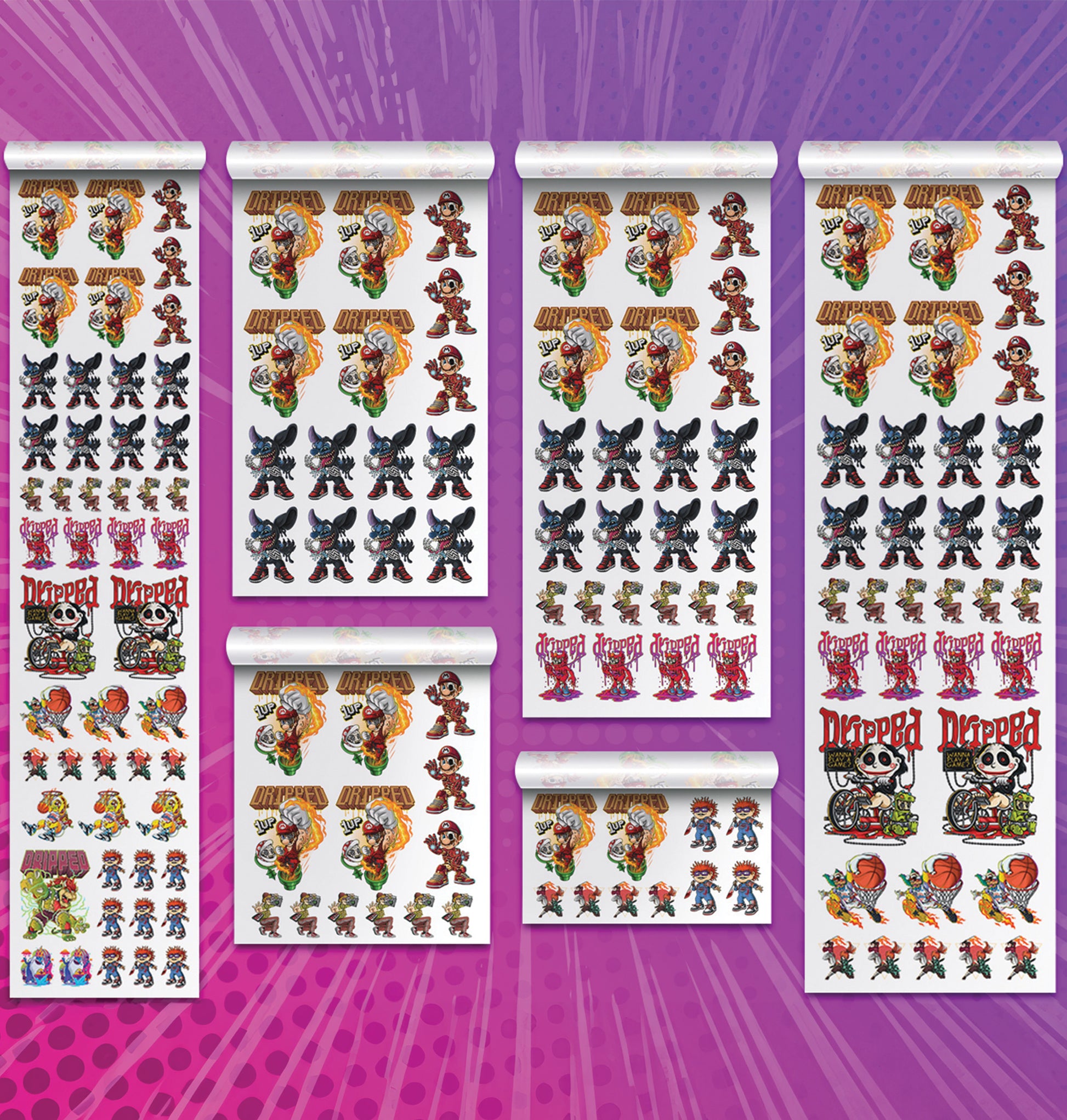
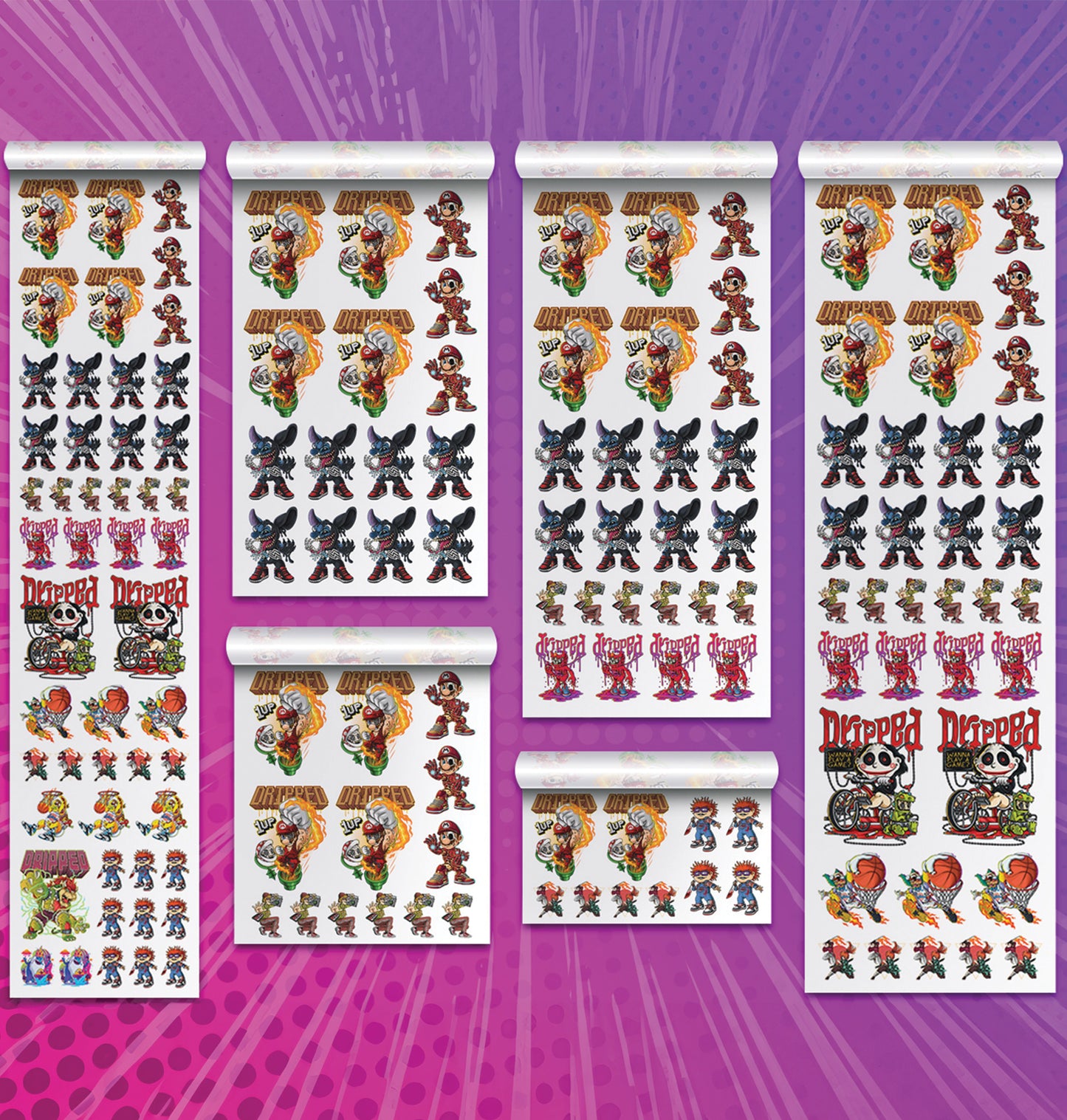
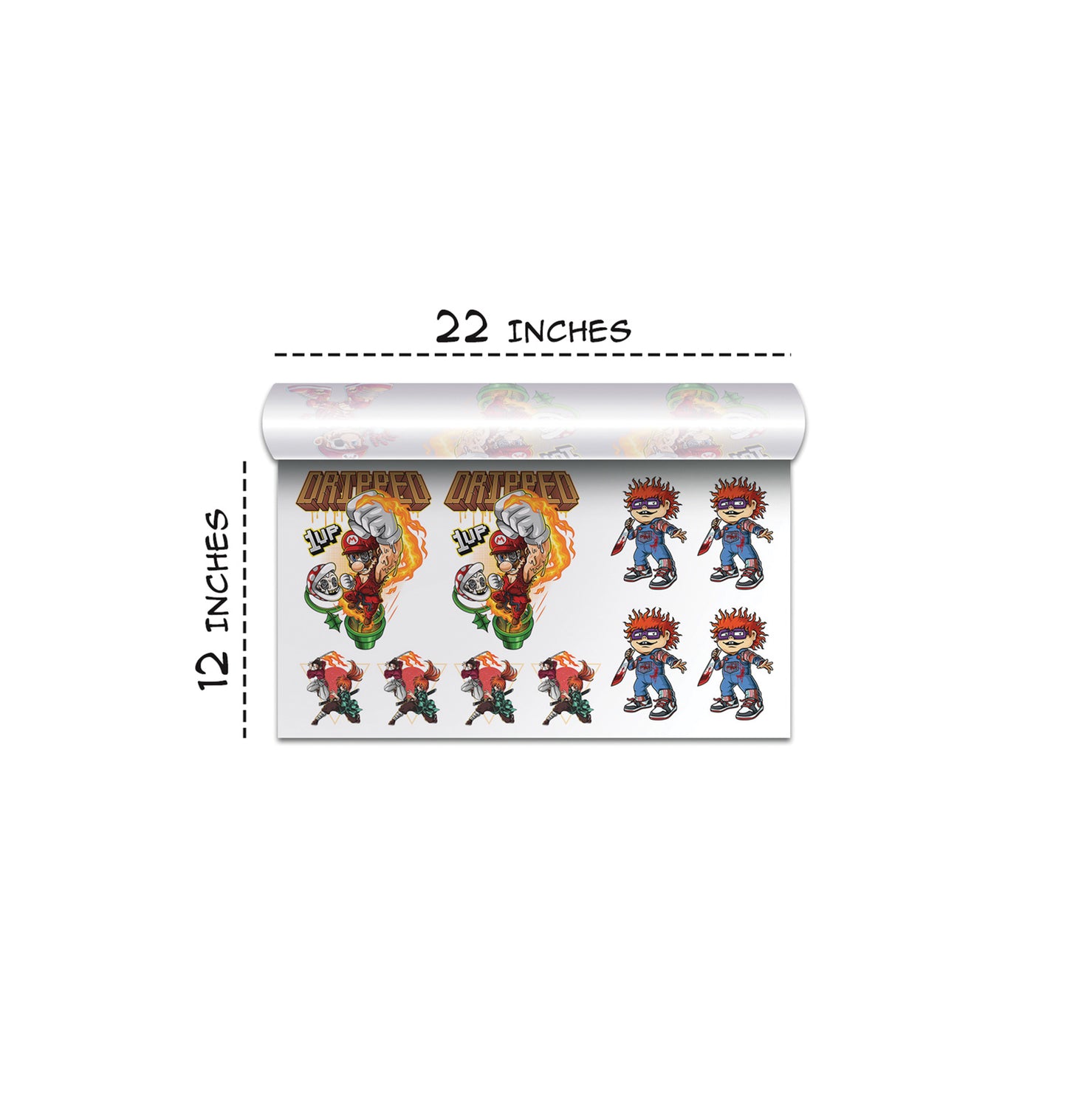
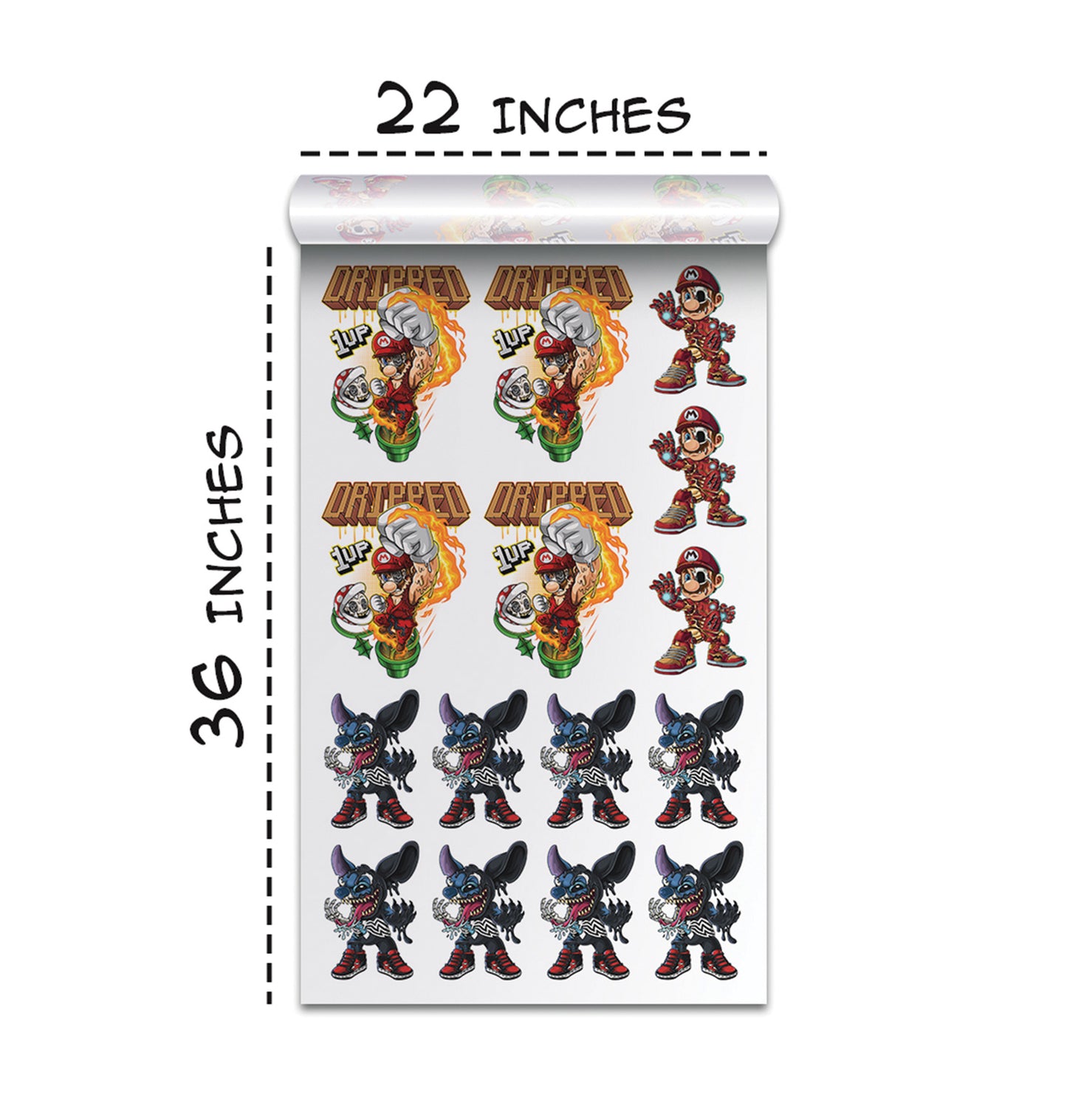
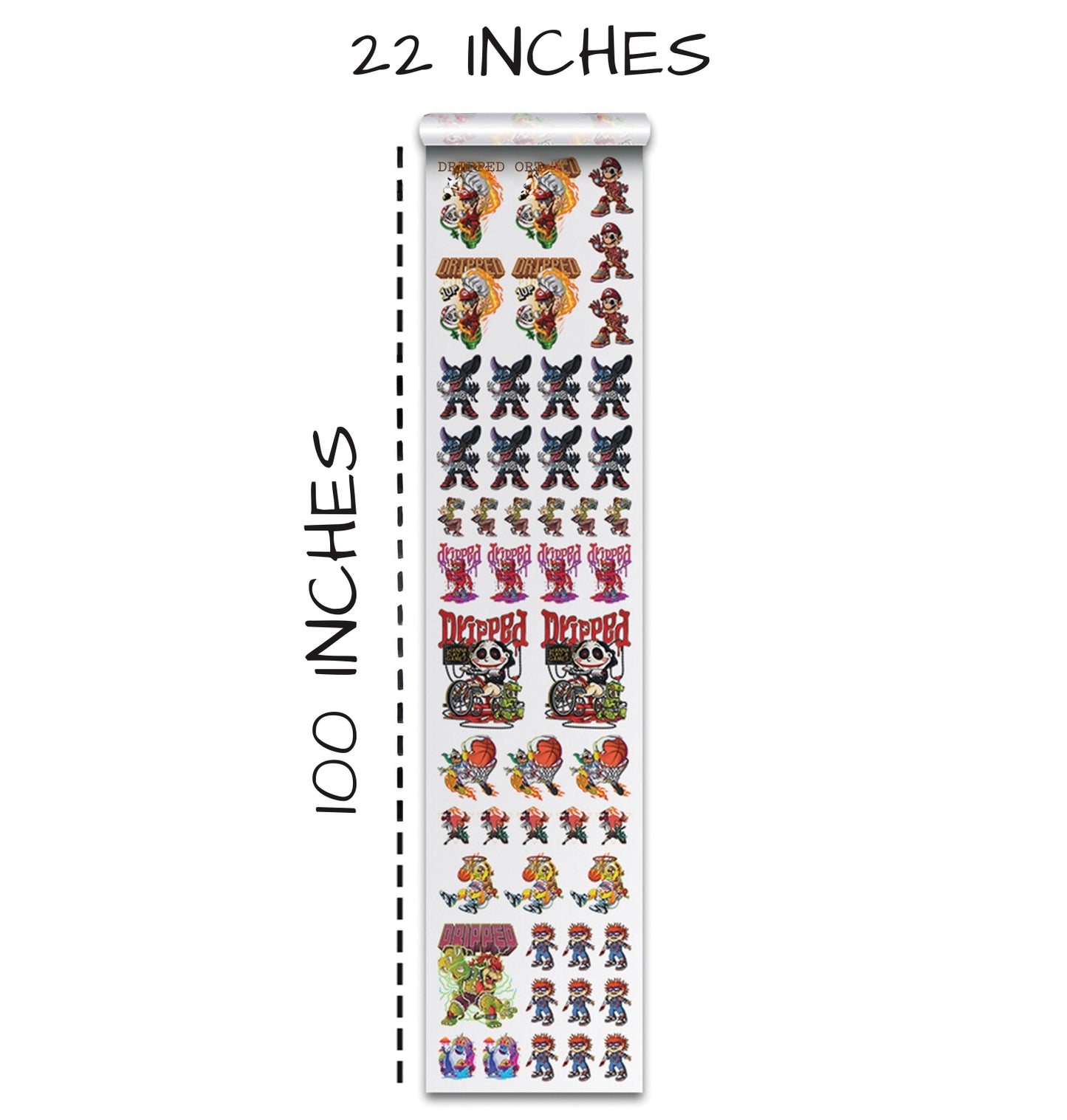
The builder lets us pick from several gang sheet lengths, all with a 22-inch width.
Starting a new gang sheet
We start a brand-new gang sheet project, then:
- Click Upload to add our PNG.
- We place it onto the gang sheet.
Step 3: Why We Must Work with PNG Inside the Builder
Only PNG files can use the built-in editing tools in the Gang Sheet Builder.
Without a PNG, we would be stuck with a flat, uneditable file that might be low resolution or have a solid background.
Step 4: Upscale and Sharpen the DTF Artwork Inside the Gang Sheet Builder
The Gang Sheet Builder includes an upscale tool. This can make a big difference when we’re starting from a soft or slightly blurry file.
We select the PNG, go to Edit, choose Upscale, then apply the improvements.
Step 5: Use One-Click Background Removal for Cleaner DTF Transfers
Backgrounds can make or break a transfer. The Gang Sheet Builder has a background removal tool to clean up white boxes or unwanted edges.
Step 6: Edit Colors with the Built-In Color Tool (Great for Seasonal Designs)
We can change specific colors across the design without rebuilding everything from scratch using the Edit panel’s Color Tool.
Step 7: Zoom In and Check the Details Before Ordering
We zoom in, inspect sharpness, check resolution, and preview on different backgrounds before ordering.
Step 8: Save, Reorder, and Take Advantage of the Gang Sheet Builder Features
We save the project and reorder anytime.
- Full creative control
- Real-time resolution checks
- Flexible sheet sizes
Important DTF Artwork Tips and Common Mistakes to Avoid
1. Printing tiny, low-dpi designs too big
Always set the design to the final print size at 300 dpi before exporting.
2. Ignoring the resolution warning in the Gang Sheet Builder
Fix low resolution before ordering.
3. Leaving random backgrounds in place
Use Remove Background to fix white blocks and messy edges.
4. Not proofreading text before uploading
Double-check all spelling before submitting.
5. Expecting perfect color matching on every print run
Color variations are normal with DTF printing.
Why We Like Using the Transfer Superstars DTF Gang Sheet Builder for Artwork Fixes
This workflow gives us strong editing tools without expensive software.
- No expensive software required
- Built-in quality tools
- Smart layout and reorder options
- Real-time resolution warnings
Simple Checklist: How We Fix DTF Artwork When the File Isn’t “Right”
- Open a free online editor.
- Create a new project at 300 dpi.
- Import the client’s file and resize.
- Export as PNG.
- Go to the DTF Gang Sheet Builder.
- Upload the PNG.
- Upscale, remove background, change colors.
- Zoom and inspect.
- Save and order.
- Reorder easily later.
By following this method, we turn problem files into crisp, print-ready DTF artwork without paying for advanced software.
Ready to Embark on your DTF Journey?
Experience DTF Excellence Today! Get your Sample Pack! See the vibrant colors, durability, and precision we offer firsthand before you invest.
Transform Your Style with our DTF Collection!
Ready to Elevate Your Printing Game? Submit your custom order now and experience:
- Superior color accuracy
- Premium durability
- Fast turnaround times
Click here to start your DTF printing journey!