How to Remove Backgrounds from Images for DTF Transfers: A Complete Guide
DTF transfers have changed how we print custom designs on shirts and other items. Getting clean, sharp prints starts with one important step: removing the background from your images. When you keep white or colored backgrounds, your prints look like big rectangles instead of clean designs. This guide will show you how to remove backgrounds quickly and easily for perfect DTF transfers.

Table of Contents
- What are DTF Transfers and Why Remove Backgrounds?
- Understanding Image Resolution for DTF Printing
- Getting Started with Gang Sheet Builder
- Step-by-Step Background Removal Process
- Improving Image Quality Before Background Removal
- Working with Halftones for Smooth Edges
- Color Management and Editing Tools
- File Management and Organization
- Common Problems and Solutions
- Advanced Tips for Professional Results
- Working with Different Design Types
- Building an Efficient Workflow
- Conclusion
What are DTF Transfers and Why Remove Backgrounds?
Direct-to-Film (DTF) printing is a method that prints designs onto special film, then transfers them to fabric using heat. Unlike screen printing, DTF works on many different materials like cotton, polyester, and blends.
When you print a design with a background, you get more than just your image. You get a whole rectangle of color that doesn't look professional. Removing backgrounds creates transparent areas that let the fabric show through. This makes your design blend naturally with the shirt or item.
Think of it like a sticker. A good sticker only has the design, not a white box around it. The same idea applies to DTF transfers.
Understanding Image Resolution for DTF Printing
Before removing backgrounds, you need to understand image quality. DTF printing works best with high-resolution images. Resolution is measured in DPI (dots per inch).
For DTF transfers, you want at least 300 DPI for sharp, clear prints. This means every inch of your design has 300 tiny dots of color. Lower resolution images look blurry or fuzzy when printed.
The Gang Sheet Builder mentioned in the video shows colored boxes around images. Green boxes mean your image has good resolution (300 DPI). Red boxes mean the resolution is too low (under 200 DPI) and might not print well.
Getting Started with Gang Sheet Builder
A gang sheet builder is a tool that helps you arrange multiple designs on one sheet of film. This saves money by printing several items at once.
The Gang Sheet Builder has many helpful tools for preparing your images:
- Background removal
- Image resizing
- Quality upscaling
- Color editing
- Halftone adjustments
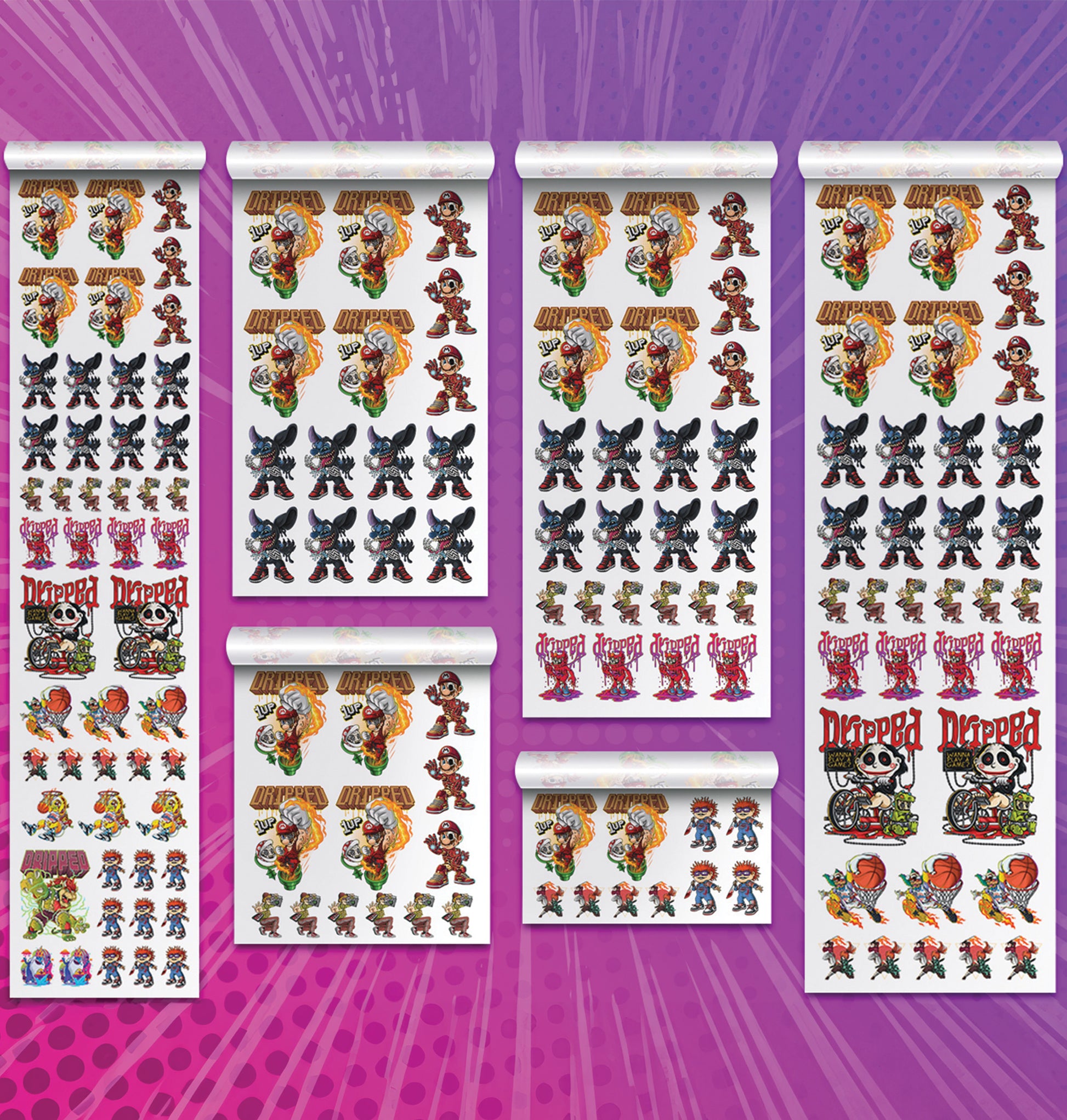
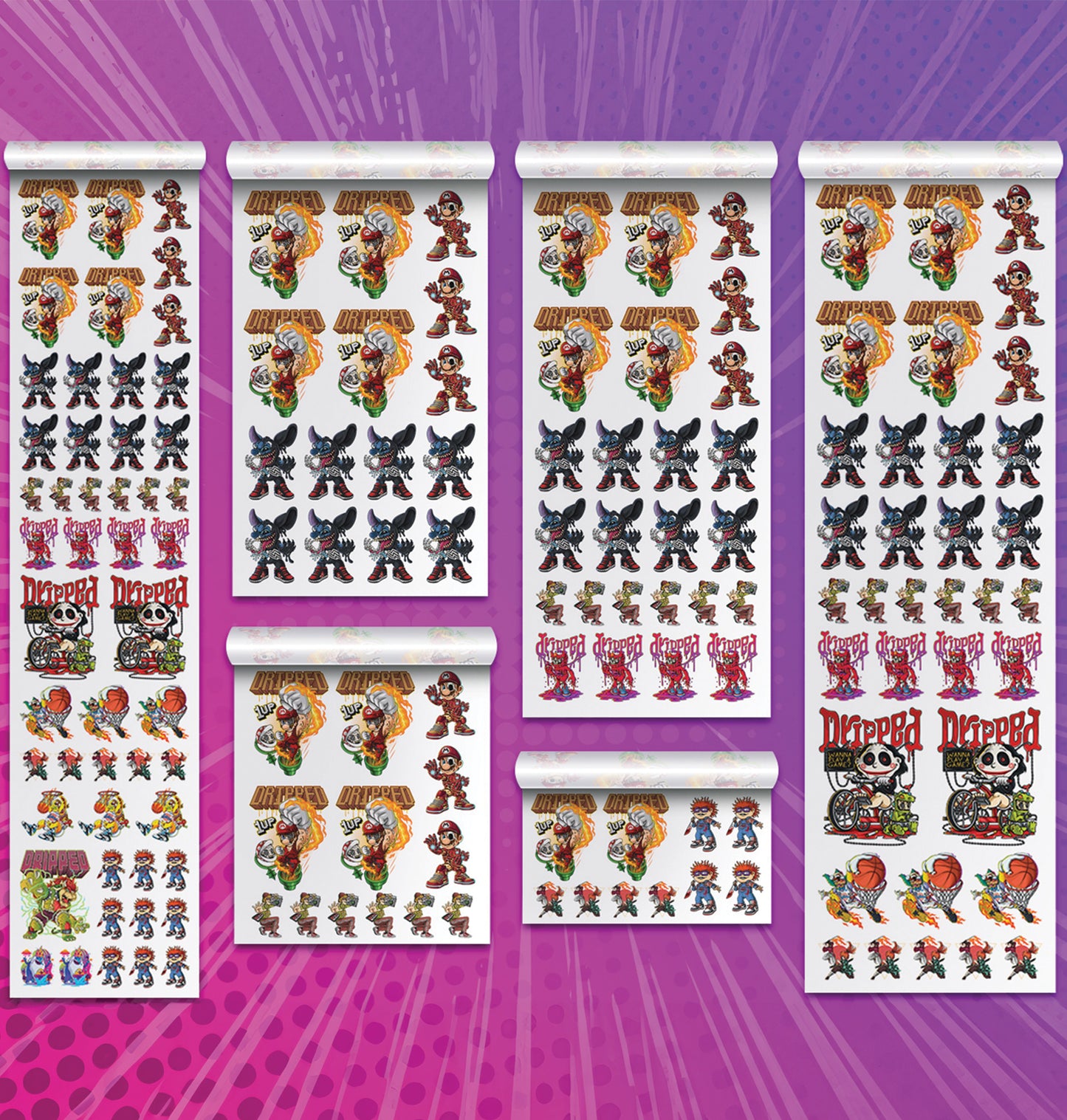
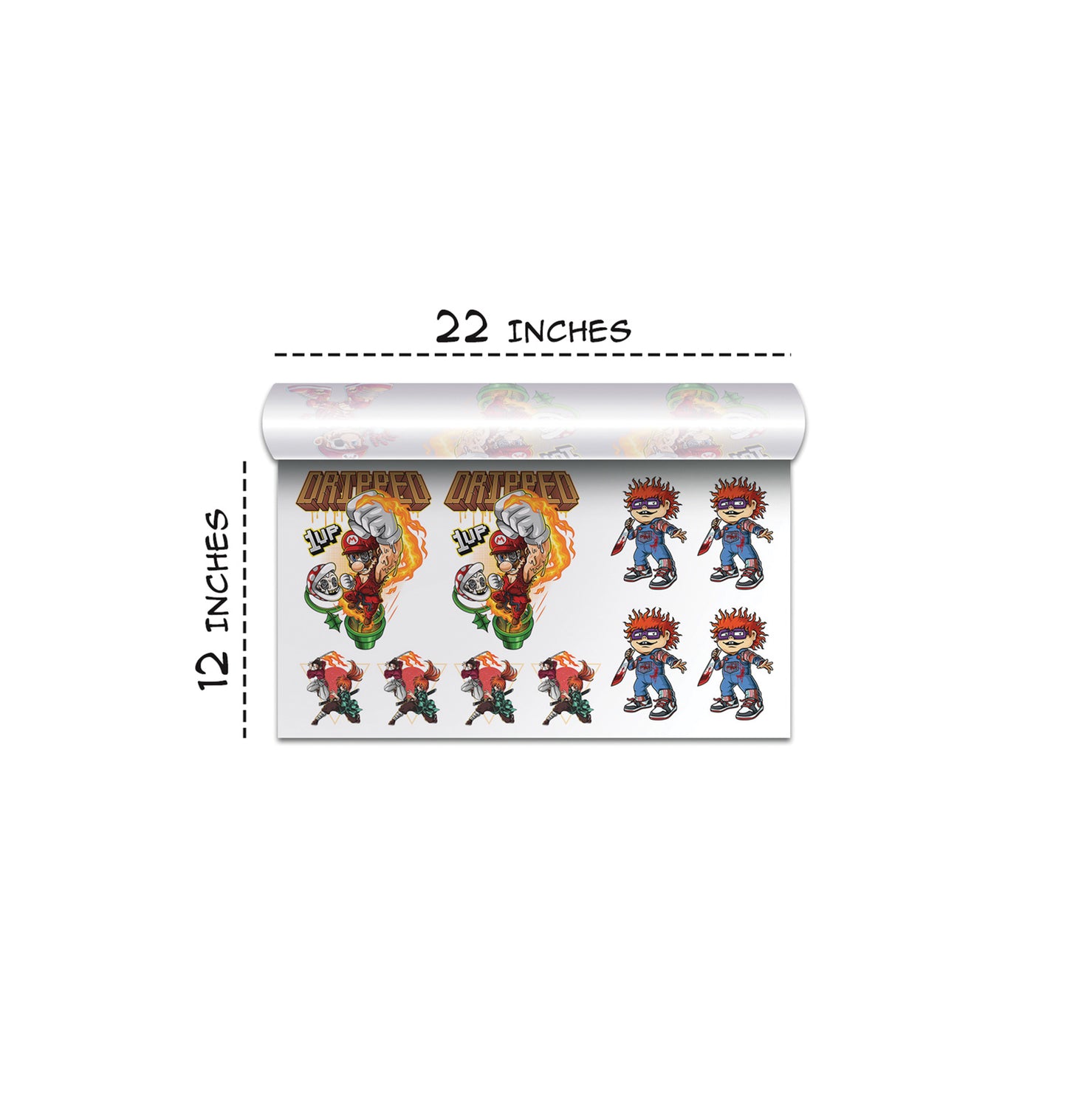
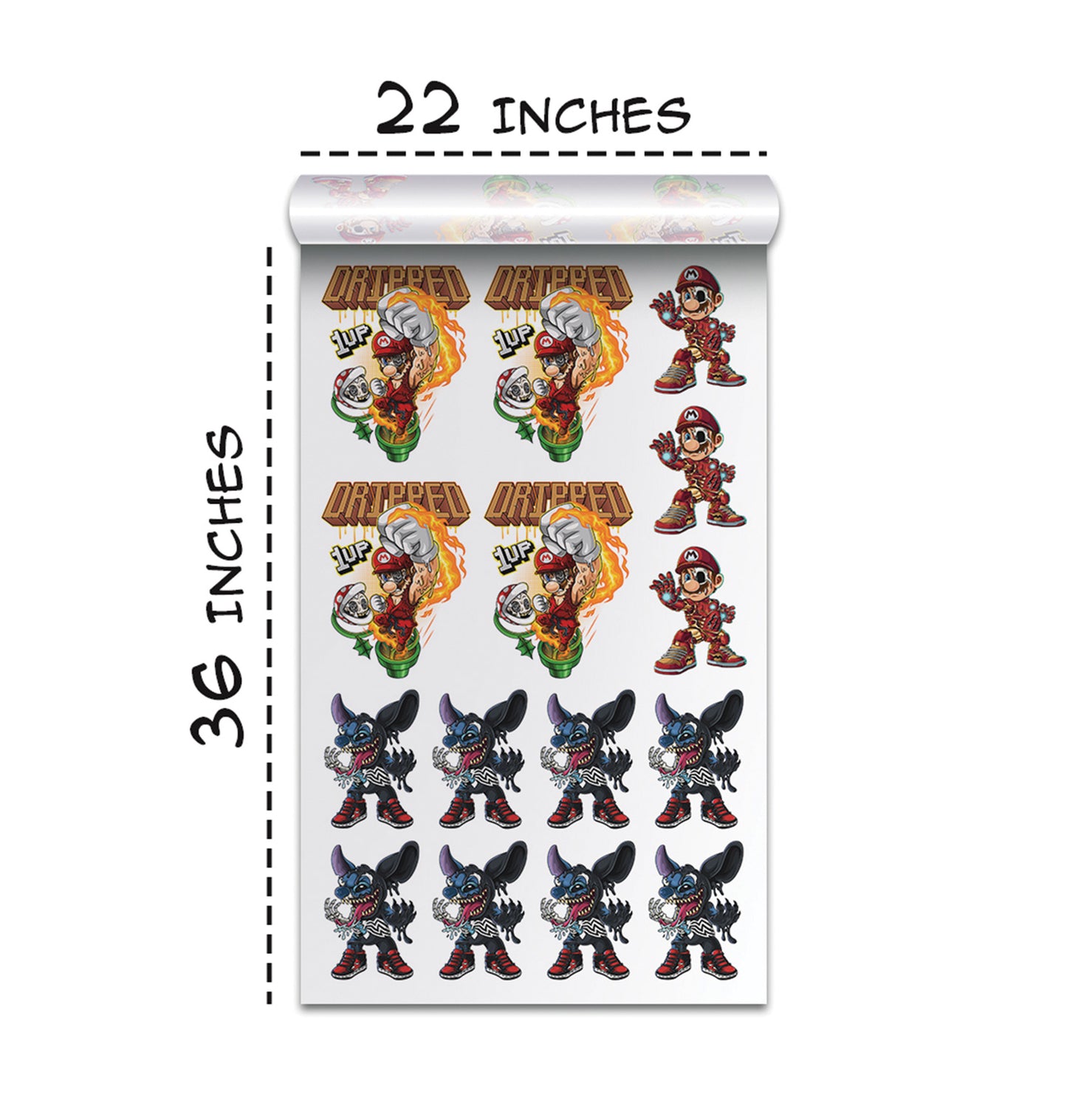
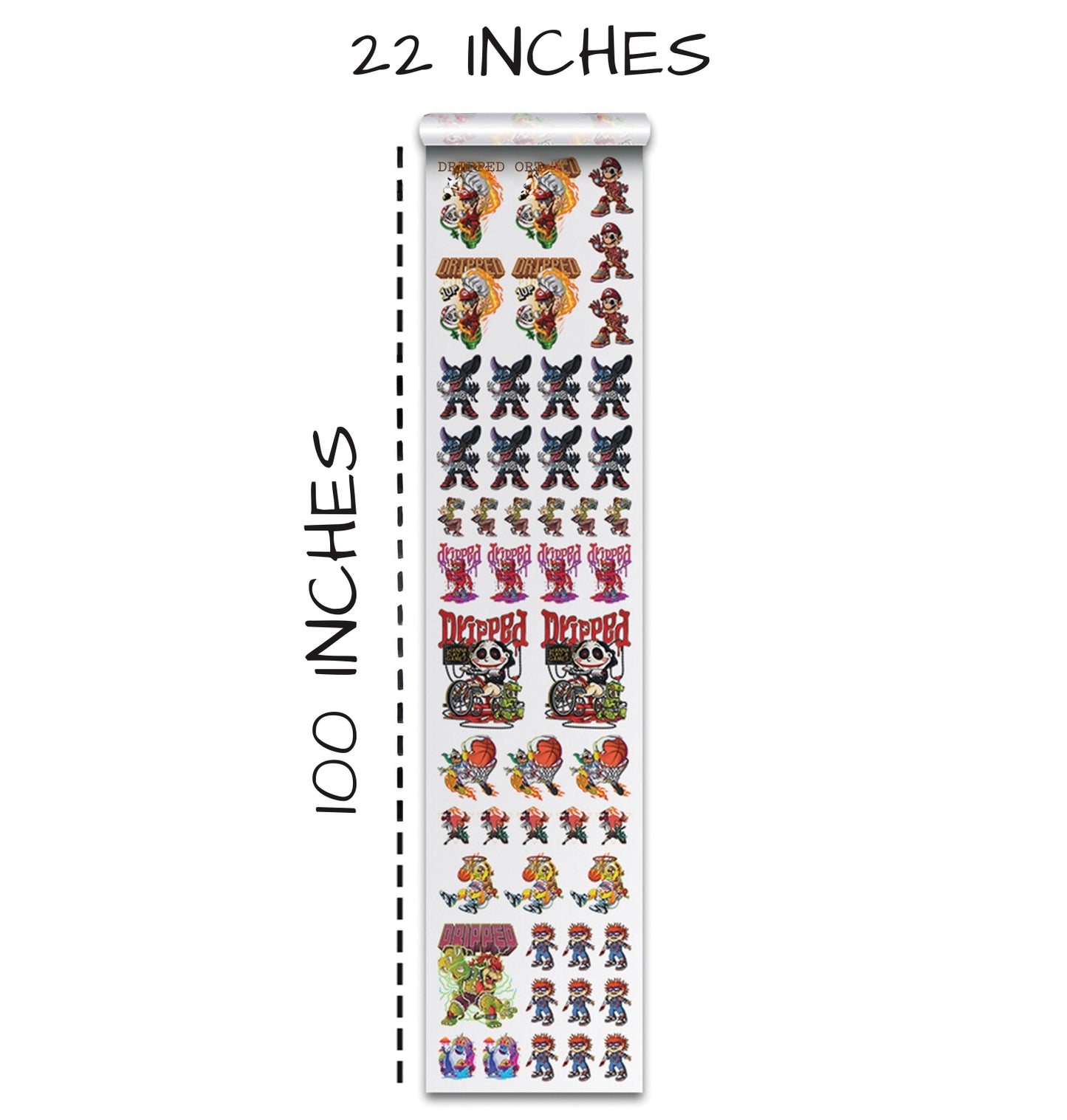
To start, choose your gang sheet size. You can always change this later. A 22x36 inch sheet is common for testing different designs.
Step-by-Step Background Removal Process
Uploading Your Images
First, upload your image files to the Gang Sheet Builder. You can upload several images at once to work on multiple designs.
When you add images to the sheet, pay attention to the colored boxes. These tell you about image quality:
- Green box = Good quality (300 DPI)
- Red box = Poor quality (under 200 DPI)
Basic Background Removal
The easiest way to remove backgrounds is using the "Quick Remove Background" feature:
- Click on your image in the gang sheet
- Select "Edit Image"
- Click "Quick Remove Background"
- Wait for the tool to process your image
- Click "Apply" if you like the result
This automatic tool works well for simple backgrounds like solid colors. It quickly identifies the main subject and removes everything else.
Handling Different Background Types
Different images need different approaches:
Solid Backgrounds: White, black, or single-color backgrounds remove easily with the automatic tool.
Complex Backgrounds: Images with multiple colors or detailed backgrounds might need extra work. You may need to use manual tools or try the process several times.
Gradients and Shadows: These can cause problems because they create semi-transparent areas that don't transfer well to fabric.
Improving Image Quality Before Background Removal
Using the Upscale Feature
If your image is small or low quality, use the "Upscale Quality" feature before removing the background:
- Select your image and click "Edit Image"
- Choose "Upscale Quality"
- Wait for processing
- Then remove the background
This feature uses AI to add more pixels and make your image sharper. It's especially helpful for logos or small graphics that need to be printed larger.
Resolution Guidelines
For best results, follow these resolution guidelines.
- Small designs (under 5 inches): 300 DPI minimum
- Medium designs (5-10 inches): 250-300 DPI
- Large designs (over 10 inches): 200-250 DPI
Working with Halftones for Smooth Edges
Sometimes after removing backgrounds, you get fuzzy edges or gradients that don't print well. This creates white outlines around your design when transferred.
What are Halftones?
Halftones break images into tiny dots to create smooth color changes. In DTF printing, this prevents the "white haze" problem around transferred designs.
Applying Halftone Effects
When you notice gradients or soft edges:
- After removing the background, click the "Halftone" button
- Adjust the sensitivity to make dots bigger or smaller
- Keep dots at least 0.5mm wide so they transfer properly
- Click "Apply" when satisfied
Halftones work like newspaper photos - lots of tiny dots create the illusion of smooth colors from far away.
Color Management and Editing Tools
The Gang Sheet Builder includes color editing tools:
Changing Colors
You can change specific colors in your design:
- Select the "Color Tool"
- Click on the color you want to change
- Choose a replacement color
- Apply the changes
Be careful - this tool changes ALL pixels of that color, not just the ones you clicked.
Visual Aids
Use the checkered background view to see transparent areas clearly. This helps you spot missed background pieces or problems with your removal.
File Management and Organization
Saving Your Work
Always save your projects:
- Give your gang sheet a descriptive name
- Add dates to track different versions
- Create an account to save and reorder designs
This helps you find and reuse successful designs later.
File Formats
The best file formats for DTF printing are:
- PNG (supports transparency)
- High-resolution JPEG
- PDF (for vector graphics)
PNG files work best because they keep transparent backgrounds intact.
Common Problems and Solutions
White Outlines or Halos
This happens when background removal leaves semi-transparent pixels:
- Use the halftone feature to convert gradients to dots
- Check your image at 100% zoom to spot problems
- Try the background removal tool multiple times
Poor Print Quality
If prints look blurry or pixelated:
- Check your image resolution (needs 300 DPI minimum)
- Use the upscale feature for small images
- Start with higher quality original images
Colors Look Wrong
For accurate colors:
- Use sRGB color profile
- Test print small samples first
- Adjust your monitor calibration
Advanced Tips for Professional Results
Planning Your Layout
- Leave space between designs for easy cutting
- Group similar colors together
- Plan how you'll separate individual transfers
Testing Your Process
- Print small samples first
- Try different materials
- Adjust heat press settings for each fabric type
Maintaining Quality
- Clean printer heads regularly
- Use fresh films and powders
- Store materials in cool, dry places
Working with Different Design Types
Text and Logos
- Use vector formats when possible
- Keep text crisp and readable
- Avoid very thin lines that might not transfer
Photos and Complex Images
- Start with high-resolution originals
- Use halftones for smooth gradients
- Consider simplifying very complex backgrounds
Artistic Designs
- Test different halftone settings
- Use manual editing tools for fine control
- Keep important details away from edges
Building an Efficient Workflow
Batch Processing
- Upload all files at once
- Use consistent settings across similar designs
- Save successful settings as templates
Quality Control
- Zoom in to inspect edges
- View with different backgrounds
- Test print problematic areas
Time Management
- Learn keyboard shortcuts
- Use the auto-arrange features
- Create design libraries for reuse
Conclusion
Removing backgrounds from images is essential for professional DTF transfers. The Gang Sheet Builder makes this process simple with automatic tools and helpful features. Remember to start with high-quality images, use the right resolution settings, and apply halftones when needed.
Practice with different types of images to learn what works best. Each design is different, so don't be afraid to try multiple approaches. With these techniques, you'll create clean, professional transfers that make your custom apparel stand out.
The key is patience and testing. Start with simple designs and work up to more complex images as you get comfortable with the tools. Soon you'll be creating amazing DTF transfers that look professional and last long.
Ready to Embark on your DTF Journey?
Experience DTF Excellence Today! Get your Sample Pack! See the vibrant colors, durability, and precision we offer firsthand before you invest.
Transform Your Style with our DTF Collection!
Ready to Elevate Your Printing Game? Submit your custom order now and experience:
- Superior color accuracy
- Premium durability
- Fast turnaround times
Click here to start your DTF printing journey!