How to Create Realistic Leather Patch Effects Using Kittl and AI for DTF Printing
Table of Contents
- Introduction: AI Leather Patch Design Revolution
- Why Choose AI Leather Patch Effects over Real Leather
- Setting Up Your Project in Kittl
- Transforming Images into Leather Patch Designs
- Creating Leather Patch Text Effects
- Preparing Your Designs for DTF Printing
- Heat Pressing Your AI Leather Patch Designs
- Conclusion: Premium Designs Made Easy

Introduction: AI Leather Patch Design Revolution
Would you believe that the leather patch designs we see on premium hats, jackets, and bags don’t have to be real leather at all? Today, we’ll show you how to create incredibly realistic leather patch effects using Kittl (KD) and AI, designed specifically for DTF printing.
A leather patch effect mimics the look of a patch debossed into real leather, often complete with stitched edges and natural grain. It’s a style widely recognized in streetwear, workwear, caps, jackets, and even limited-edition merch. The best part is that using AI, we can recreate this look digitally and print it without ever touching real leather. This not only saves time and money but also opens up creative possibilities for designers and clothing brands.
By the end of this guide, we’ll show you step by step how to generate leather patch effects from images and text, customize colors and textures, prepare designs for DTF printing, and even bring them to life on hats.
Why Choose AI Leather Patch Effects over Real Leather
You might wonder why anyone would skip real leather patches. The answer lies in flexibility, efficiency, and cost. Here’s what AI-generated leather patch effects bring to the table:
- Lower Cost – Real leather is expensive, especially when combined with labor for stitching and cutting. AI eliminates these costs entirely.
- Faster Production – With AI, design adjustments can be made instantly. Change color, style, or shape in seconds, rather than hours of manual work.
- Design Flexibility – You can create patches of any shape: round, square, rectangle, or even custom designs. You aren’t limited by material constraints.
- Lightweight & Comfortable – DTF printed patches are flexible, making garments more comfortable to wear. They adhere easily to t-shirts, hoodies, caps, and other textiles.
- Easy Revisions – Mistakes or updates are simple to fix; no need to remake the leather patch from scratch.
For designers and print shops, this approach is a game-changer. Not only can we achieve the premium look of leather, but we can also scale production, experiment with styles, and adapt designs to multiple products effortlessly.
Setting Up Your Project in Kittl
To start creating leather patch designs, we need to set up our project in Kittl. Here’s how we do it:
Open KD and Create a New Project
Start by opening Kittl and choosing “New Project.”
Set Resolution to 300 DPI
This ensures the design is high-quality and perfect for DTF printing. Higher resolution preserves details like grain and stitching.
Adjust the Artboard Size
Kittl automatically adjusts the artboard, but we can modify it based on the patch size we intend to print.
Import Your Image
Bring in your logo, image, or design to use as the base for the leather patch effect.
By starting with a clean setup, we make sure that all subsequent steps—from applying AI effects to printing—remain sharp and professional.
Transforming Images into Leather Patch Designs
Once the project is ready, we can use AI in Kittl to turn our images into realistic leather patches.
Using the Smartboard and AI Prompts
- Smartboard Tool – Click on the artboard, then select “Smartboard.” This allows us to interact with AI prompts inside KD.
- Paste the Leather Patch Prompt – We use a customized AI prompt to generate the leather patch effect. This includes selecting shape, leather color, deboss depth, and whether to include stitches.
- Choose Shape and Color – Options include logo shape, round, square, rectangle, or custom shapes. Leather colors can range from rich dark brown to distressed saddle or matte black.
Adjusting Deboss and Stitching
- Deboss Depth – This determines how “pressed” the design looks into the leather. A deeper deboss gives a more realistic texture.
- Stitching Options – Add stitched borders for extra realism or remove them for a simpler patch.
Generating Multiple Variations
- Duplicate Artboards – Hold Alt and drag to create duplicates for testing different colors or styles.
- Swap Images – Replace the image in each duplicate artboard and reapply the AI prompt for unique results.
By repeating these steps, we can create a full set of leather patch designs for different garments or merchandise styles.
Creating Leather Patch Text Effects
AI doesn’t just work with images—it can transform text into realistic leather patches too.
Steps for Text-Based Leather Patches
- Click Built-In AI Prompt Box – In KD, select the text prompt feature.
- Paste the Leather Patch Text Prompt – Customize the text, font style, patch shape, leather color, deboss depth, and stitching options.
- Remove Unused Options – Keep only the settings you want to apply.
- Generate the Result – Click “Generate,” and AI creates a leather-style text patch.
We can experiment with multiple fonts, colors, and shapes to match our branding or design aesthetic. Vintage western fonts often work well for leather effects, while clean modern fonts can give a minimalistic style.
Preparing Your Designs for DTF Printing
Once our designs are complete, we need to prepare them for DTF printing.
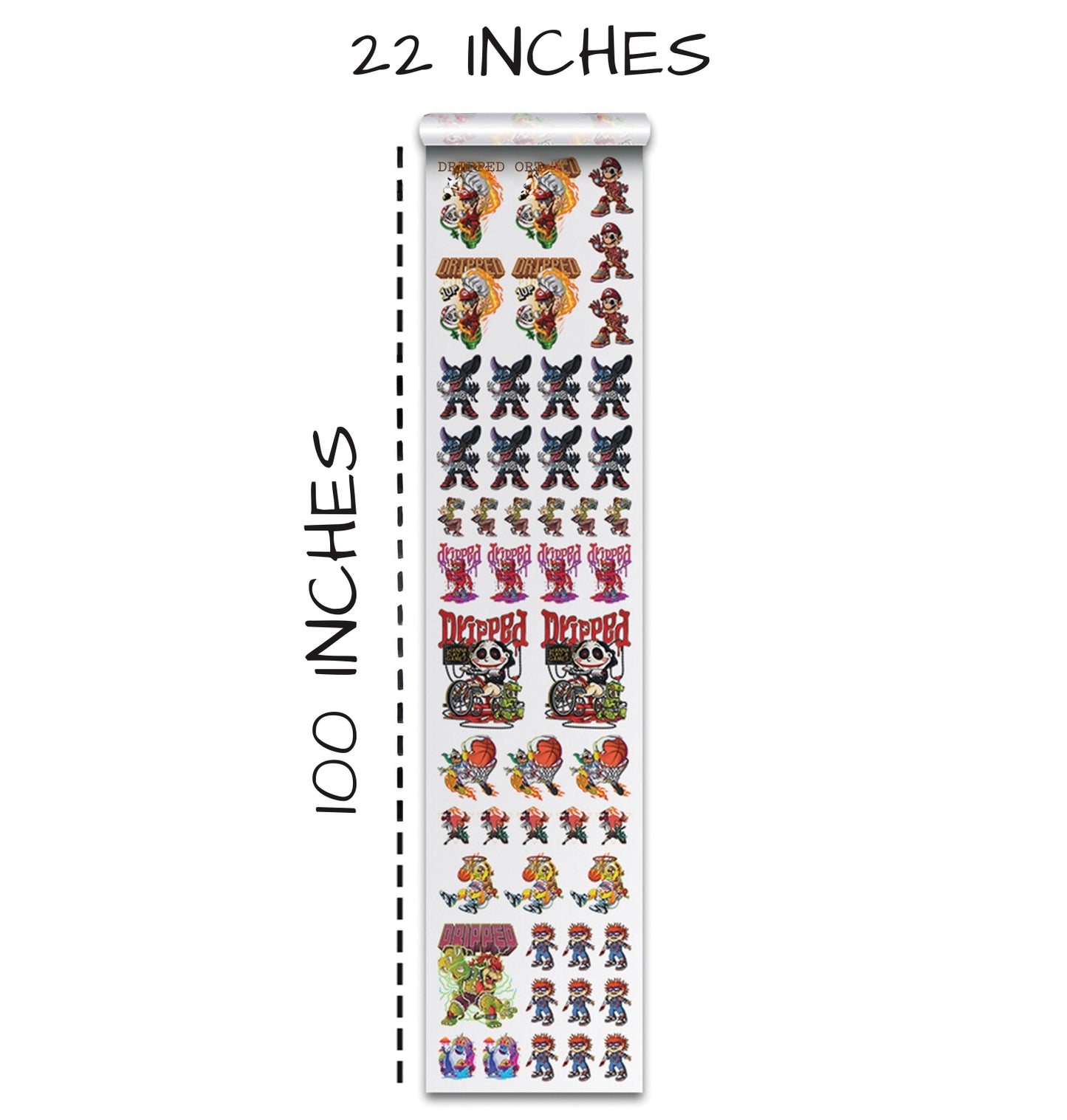
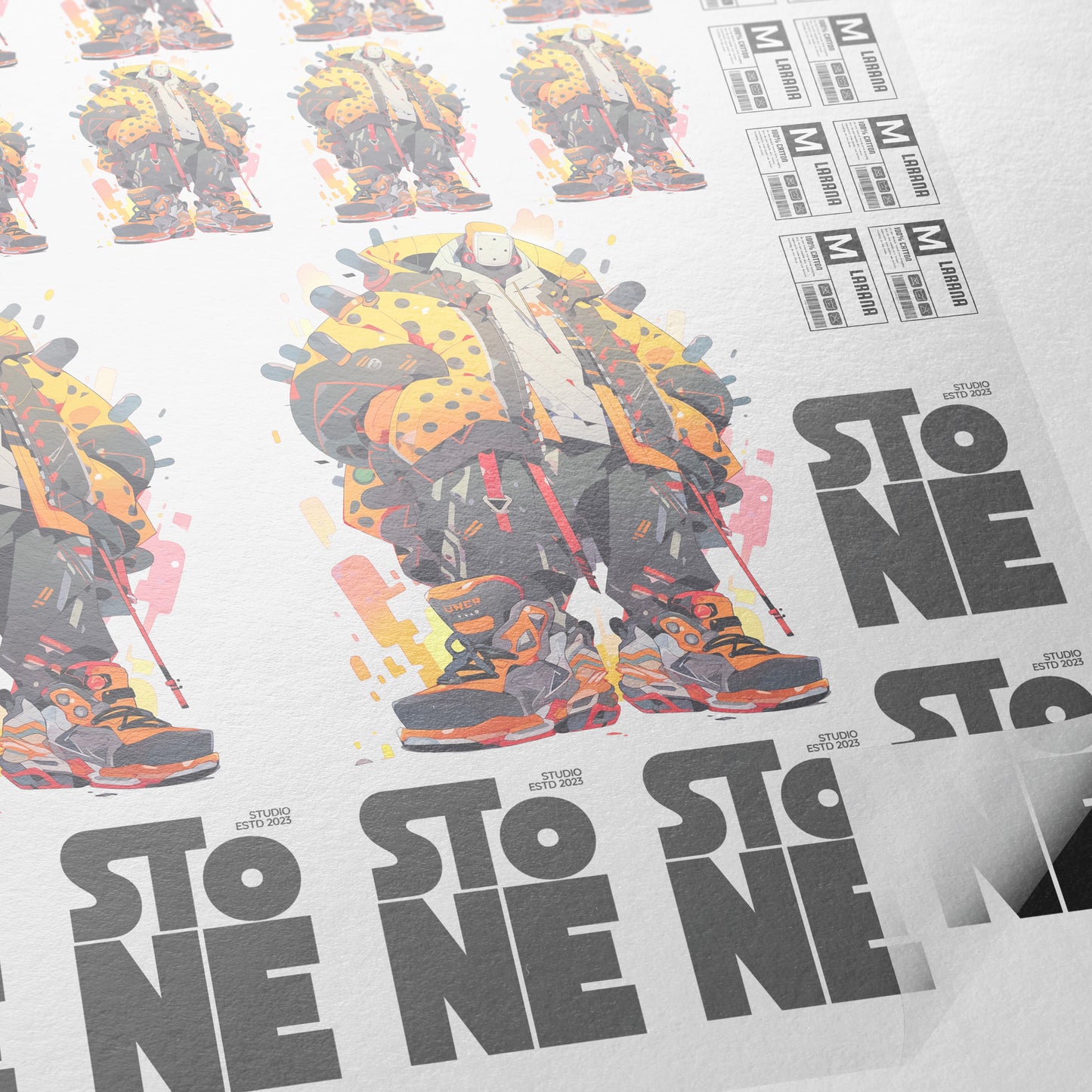
Using DTF Gang Sheets
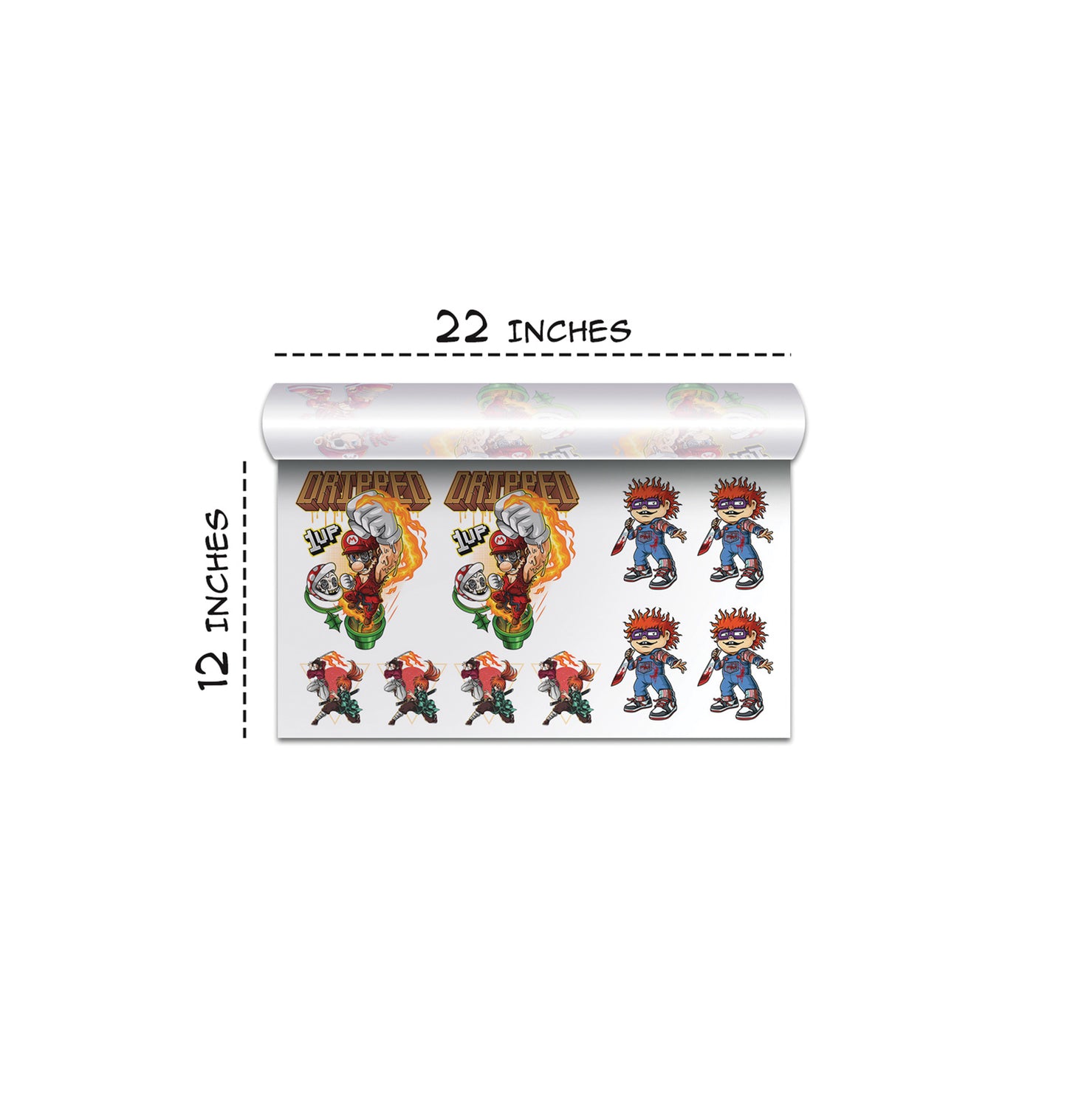
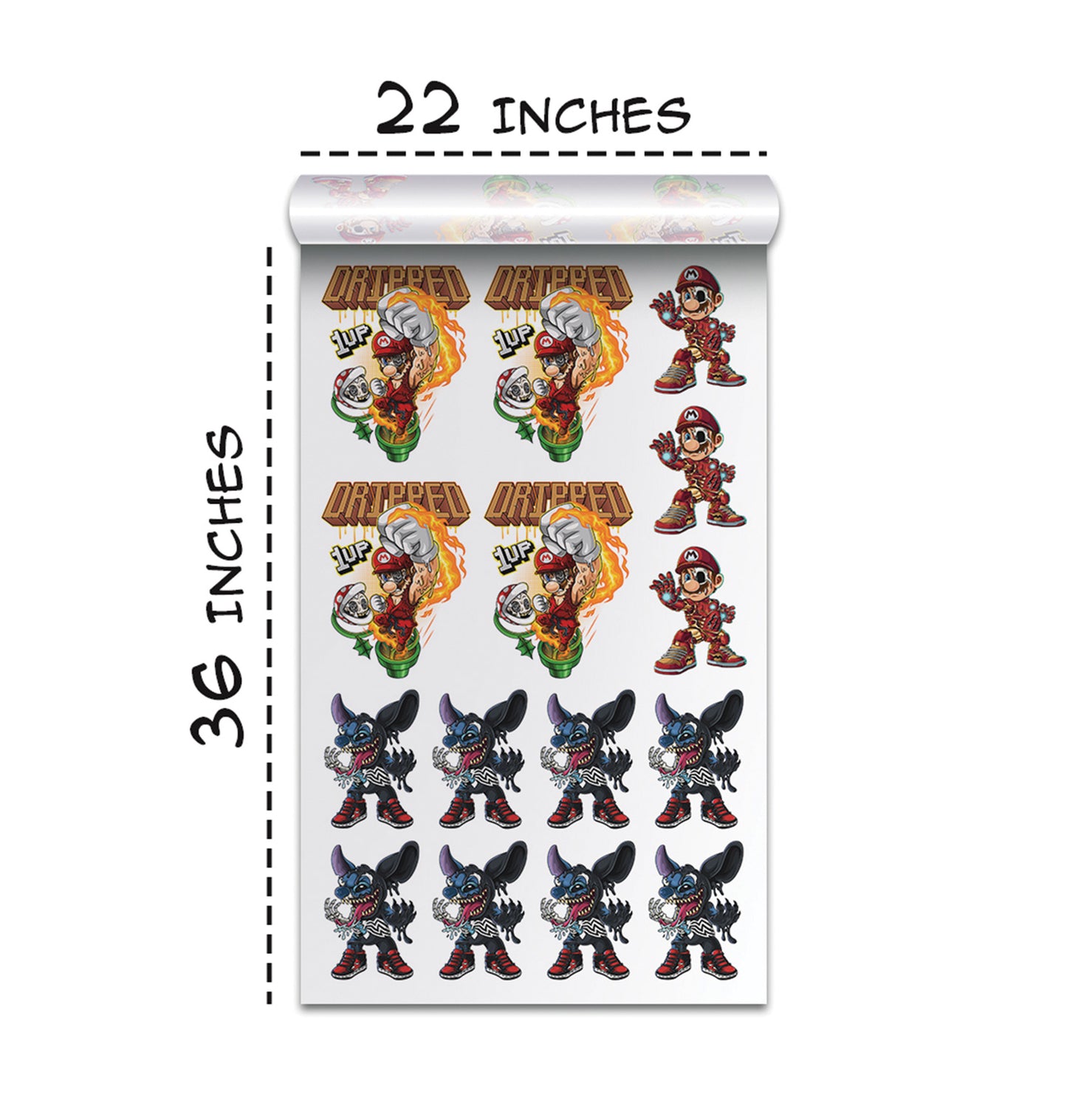
- Visit TransfersSuperstars.com – Under the “Gang Sheet” section, select “DTF Gang Sheet Builder.”
- Upload Your Images – Place each patch design onto the gang sheet.
- Edit Images – Remove unwanted drop shadows or backgrounds to ensure clean printing.
- Duplicate and Arrange – Adjust the size and placement to maximize the gang sheet space.
DTF gang sheets allow us to print multiple patches at once, saving time and ensuring consistent quality.
Removing Backgrounds
- Remove Background Tool – This tool effectively removes white backgrounds and shadows from our designs, producing print-ready images.
- Apply Changes – Each edited design automatically updates in the gang sheet for final printing.
Heat Pressing Your AI Leather Patch Designs
With designs ready, it’s time to bring them to life on garments. Here’s how we applied the patches on hats:
Hat Selection
- Flex Fit UniPanel Trucker Cap 5511UP
- Upanging Adult Flex Fit Multicam Trucker Mesh Hat 6511MC
Heat Press Settings
- Press Temperature – 276°F (slightly below 300°F to protect the print).
- Press Duration – 7 seconds per press, followed by a second press for added pressure.
- Silicone Sheet – Used instead of a matte finishing sheet to give texture marks similar to leather.
Pressing Tips
- Center the Design – Eyeball the middle of the hat for proper placement.
- Address Wrinkling – Slight wrinkling can be fixed by cutting edges on the transfer sheet to allow better flexibility.
- Second Press – A second press ensures the patch adheres properly and maintains a realistic leather feel.
The result? Leather-like patches that look sewn on, feel slightly textured, and have a professional finish.
Conclusion: Premium Designs Made Easy
With AI and Kittl, creating realistic leather patch effects is no longer limited to traditional leather and stitching. We can design, customize, and print premium-looking patches in a fraction of the time. From image-based logos to text-based designs, these AI leather patches work beautifully on DTF prints for hats, shirts, jackets, and bags.
This method not only saves money and time but also allows us to experiment with color, shape, and texture without limits. For designers, print shops, and clothing brands, AI leather patches are a modern solution that blends style, efficiency, and flexibility.
We encourage you to try it yourself, print your patches, and bring your designs to life. With AI, the possibilities are endless, and the results look impressively real.
Ready to Embark on your DTF Journey?
Experience DTF Excellence Today! Get your Sample Pack! See the vibrant colors, durability, and precision we offer firsthand before you invest.
Transform Your Style with our DTF Collection!
Ready to Elevate Your Printing Game? Submit your custom order now and experience:
- Superior color accuracy
- Premium durability
- Fast turnaround times
Click here to start your DTF printing journey!