How We Use Canva Text Masking to Create Eye-Catching Designs That Actually Print Clean
Table of Contents
- Introduction: Why Text Masking in Canva Changes Everything
- What Is Text Masking and Why It Works So Well
- Setting Up Our Base Design in Canva
- Creating the Mask Using Shapes in Canva
- Turning Text Into an Outline for Masking
- Aligning the Image Inside the Text Mask
- Building Depth With Layers and Desaturation
- Fine-Tuning Colors and Edges
- Adding Texture With Splatter Elements
- Exporting the Design for DTF Printing
- Uploading to the DTF Gang Sheet Builder
- Pressing the Design Onto a Shirt
- Why Canva Designs Can Print Surprisingly Well
- Conclusion: Turning Simple Canva Designs Into Pro-Level Prints

Introduction: Why Text Masking in Canva Changes Everything
We all want our designs to stand out. Whether we are making graphics for social media, custom apparel, or print-ready artwork, plain text on top of an image can feel flat and boring. That is where text masking in Canva comes in.
Text masking lets us blend text and images together so the design feels intentional, bold, and professional. Instead of placing words on top of an image, we turn the text itself into a window that reveals the artwork inside. This simple trick can instantly level up our layouts even when we are working entirely inside Canva.
In this guide, we walk through how we use Canva text masking step by step, why each step matters, and how to prepare the final design so it prints cleanly for DTF transfers. By the end, we will have a polished design that looks just as good on a screen as it does on a shirt.
What Is Text Masking and Why It Works So Well
Understanding Text Masking in Simple Terms
Text masking is a design effect where an image appears inside text instead of behind it. The letters become the shape, and the image fills that shape. This technique adds depth, movement, and focus without making the design feel cluttered.
Think of it like cutting letters out of paper and placing them on top of a picture. What we see through the cut-out letters is the image itself.
Why Designers Love Text Mask Effects
We use text masking because it makes text feel bold without adding extra elements, creates a strong focal point, works well with photos, illustrations, and AI-generated art, and looks high-end even with simple fonts.
Best of all, Canva lets us do this without advanced design software.
Setting Up Our Base Design in Canva
Choosing the Right Image for Text Masking
We start by opening Canva and importing our main image. High-contrast images work best for text masking because they create more visual impact inside the letters.
In our example, we use a cyberpunk skull image generated in MidJourney. Images with strong highlights and shadows help the masked text stand out.
Once imported, we scale the image so it fills the canvas fully. This gives us flexibility later when we crop and adjust.
Adding and Styling Our Text
Next, we add our text. We choose a bold word, something short and powerful. In this case, we use the word chaos.
We then select a strong font, adjust the size so the text dominates the design, and rotate and position it to add movement. Bold fonts are important here because thin fonts can lose detail when masked.
Creating the Mask Using Shapes in Canva
Why We Use Black and White Shapes
This step is the foundation of the entire text mask. We create a black square shape and leave a small margin around the edges. That space is important because it helps Canva remove the background cleanly later.
Then we add a white shape behind the black one and scale it so it fills the entire canvas.
This black-and-white setup allows us to isolate only the area where we want the text mask to appear.
Exporting the Mask Base
Once the shapes are in place, we download the image. This exported file becomes our masking layer.
After downloading, we delete the shapes from the canvas and return to our original design.
Turning Text Into an Outline for Masking
Using the Hollow Text Effect
Now we select the text and apply the hollow text effect in Canva. We reduce the thickness to its lowest setting. This turns our text into a clean outline, which makes it easier to align and layer later.
This step is critical because it allows us to create both the filled text mask and the visible text outline for depth.
Importing and Removing the Background
We import the black-and-white image we exported earlier. Then we remove its background.
Because we left white space around the edges, Canva removes both the white background and the white text areas, leaving only the black shape.
We then crop this black shape to exactly where we want the text mask to appear.
Aligning the Image Inside the Text Mask
Cropping the Main Image to Fit the Mask
Next, we crop our main image so it fits perfectly inside the black shape. This ensures the image aligns cleanly within the masked text area.
At this point, we make sure the background color of the project is set to white and the image fills the mask area fully.
Using Duotone to Clean Up Colors
We apply Canva’s duotone effect and use the color picker to turn black areas into white.
This simplifies the design and prepares it for clean printing. Once done, we save this version and re-import it into the canvas.
Building Depth With Layers and Desaturation
Creating the Masked Text Look
After importing the saved file, we resize it to fill the canvas. Then we desaturate it using duotone so it does not overpower the main image.
Next, we move the text back to its original position. This creates a clean text outline that frames the masked image inside.
Removing Backgrounds for Clean Layering
We select the text mask and remove its background again. Then we re-import our main image one more time, remove its background, and place it behind the text.
Using Canva’s layer controls, we send the image backward so the text stays on top.
Fine-Tuning Colors and Edges
Adjusting Text Color With Duotone
If the text color does not feel right, we go back to its layer and adjust it using duotone. This allows us to match the mood of the design without repainting or rebuilding anything.
Avoiding Harsh Cut Lines With Frames
Straight edges can make designs feel stiff. To fix this, we use Canva’s built-in frames to create a soft layer mask at the bottom of the design.
We drag the image into the frame and adjust its position so the edge feels natural.
Adding Texture With Splatter Elements
Why Texture Makes Designs Feel Premium
Flat designs can feel unfinished. That is why we add texture using splatter elements from Canva’s elements tab.
These small details add energy and help the design feel intentional.
Exporting the Design for DTF Printing
Once the design looks right, we download it at high resolution. This ensures crisp edges and clean details when printing.
Before printing, we double-check for unwanted white edges, solid colors, and clean transparency.
Uploading to the DTF Gang Sheet Builder
Using the DTF Gang Sheet Builder
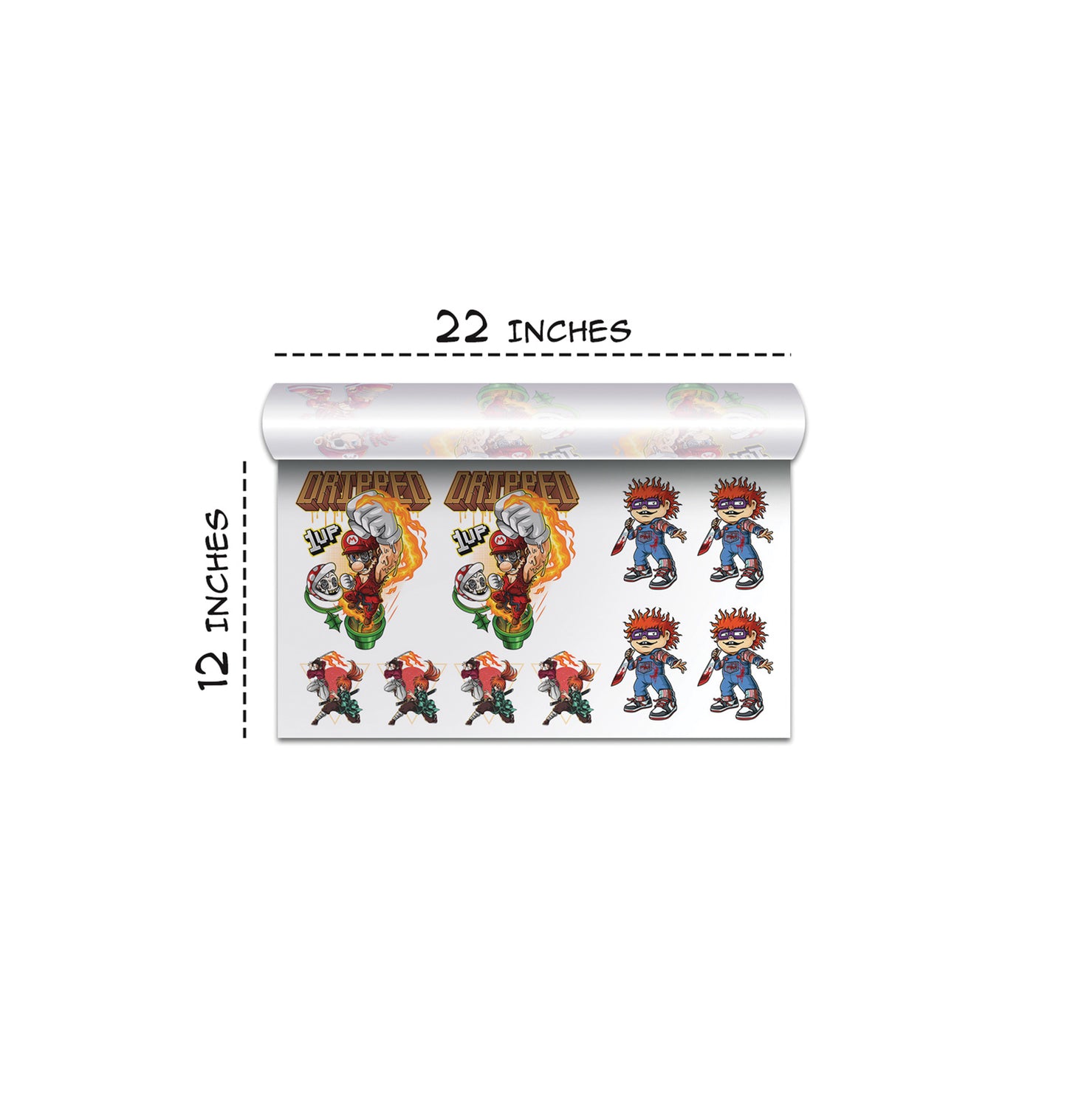
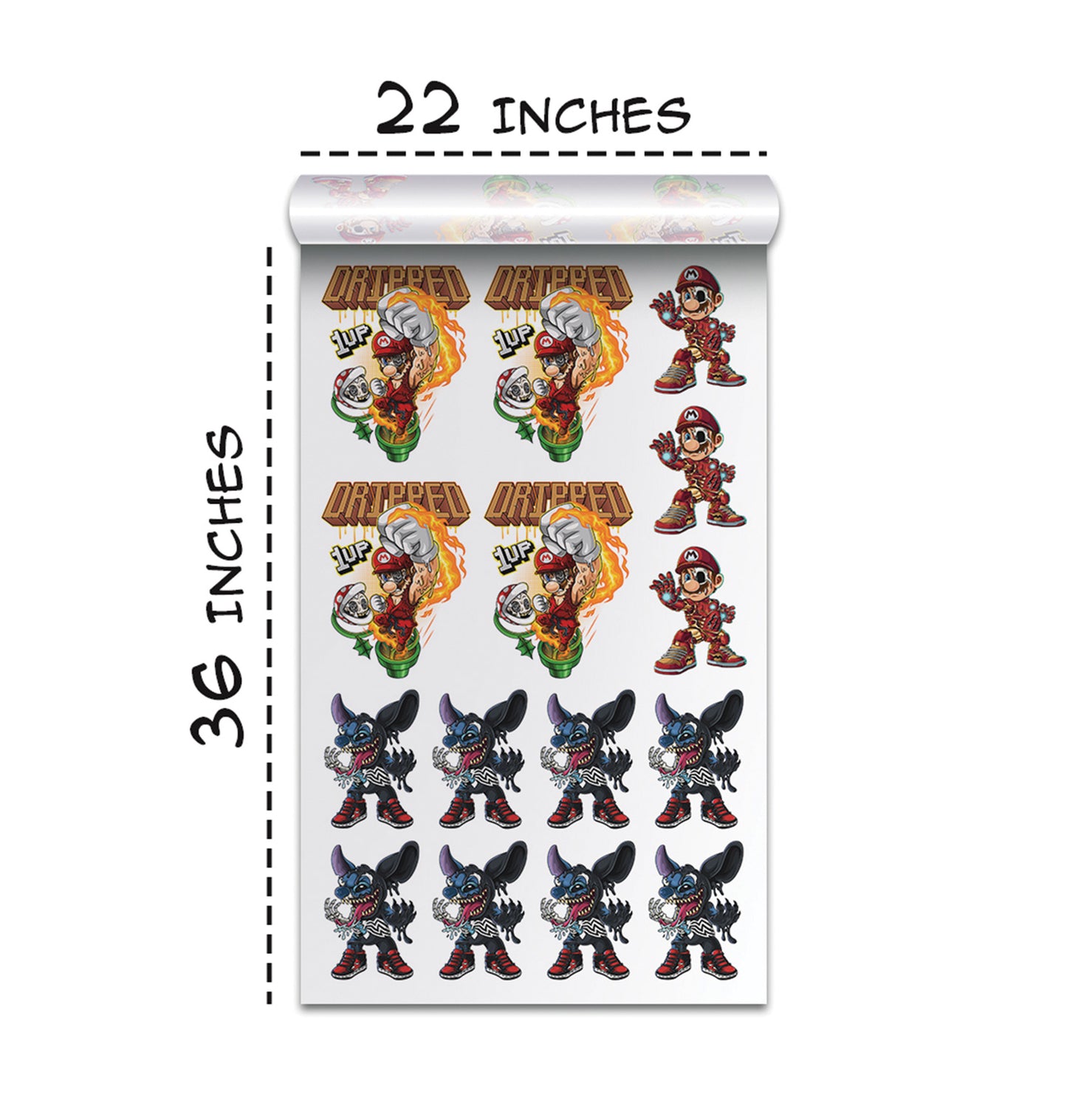
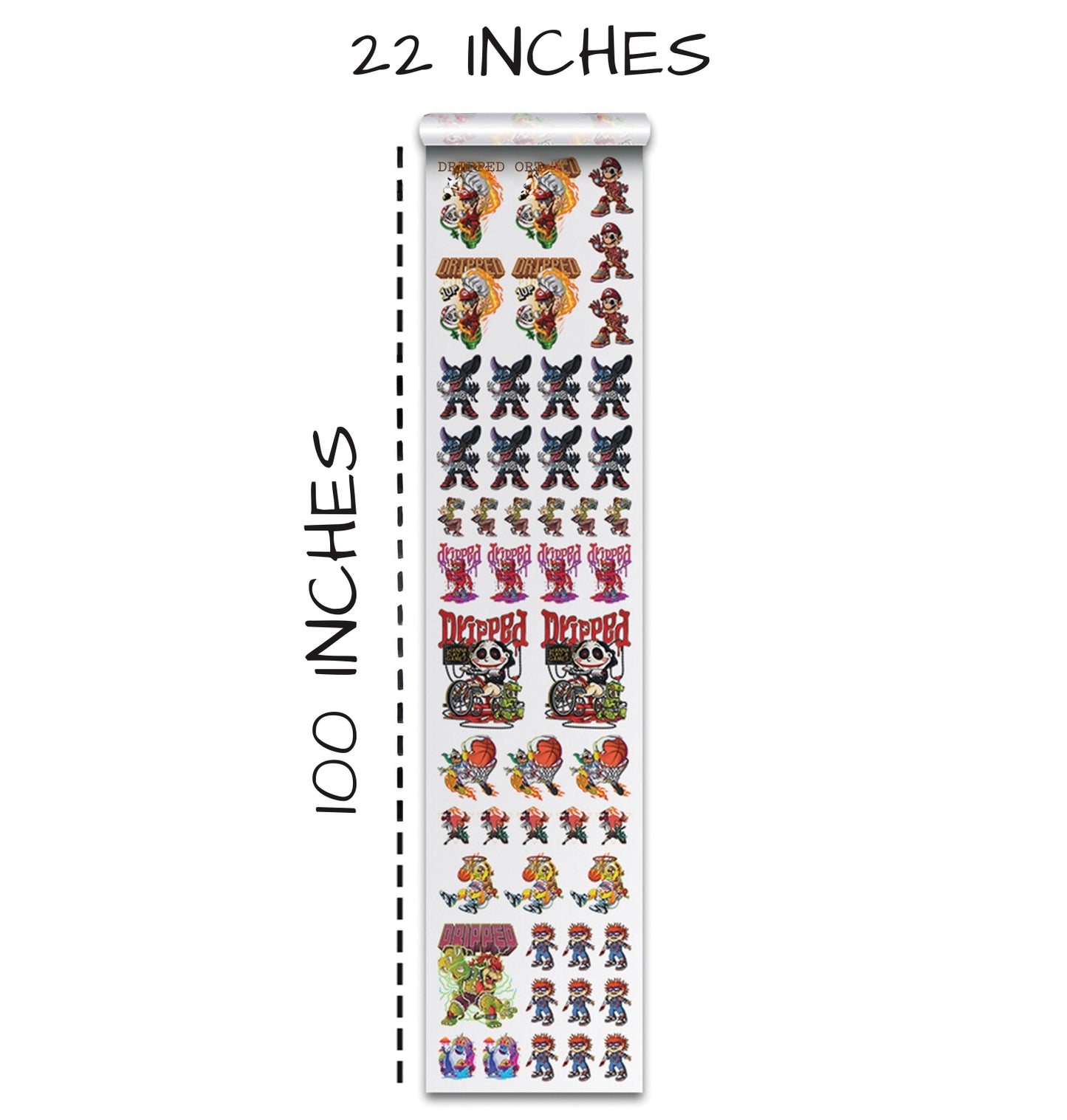
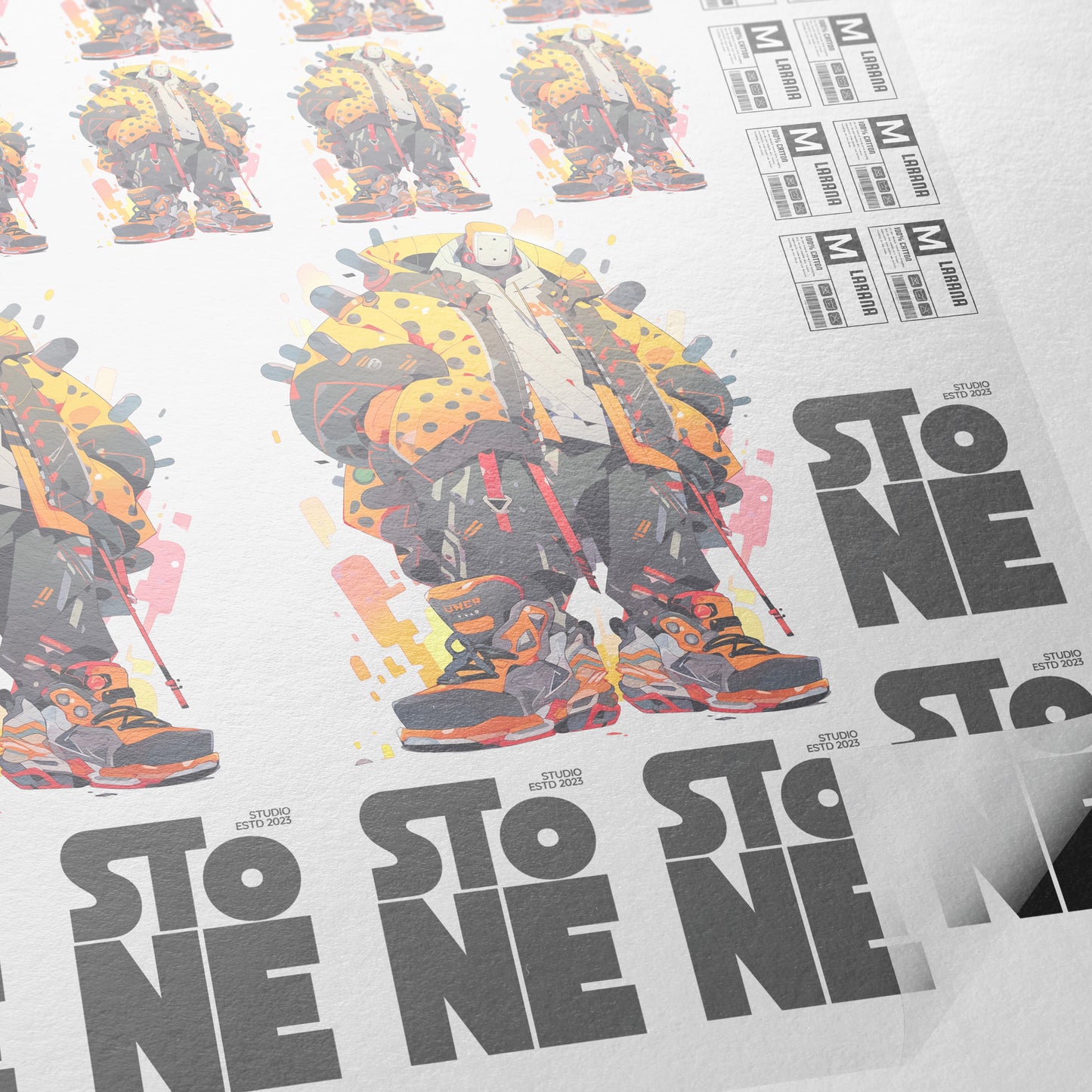
We head over to the DTF gang sheet builder and choose the size that fits our needs.
After uploading our design, we open the image settings and resize it as needed.
Using Built-In Editing Tools
Inside the editor, we can remove backgrounds, upscale quality, apply halftones, crop, and use color tools.
We use the color knockout tool to remove specific colors cleanly, apply the changes, and let the system process.
Pressing the Design Onto a Shirt
Choosing the Right Blank and Heat Press
We use a high-quality white blank because it shows detail clearly and holds ink well.
A reliable heat press with steady temperature and pressure is just as important.
Pressing, Peeling, and Finishing
We press the transfer, peel it cleanly, and apply a second press using a matte finishing sheet.
The final result is clean edges, solid color coverage, and no visible white gaps.
Why Canva Designs Can Print Surprisingly Well
Many people assume Canva designs cannot hold up in print. This process proves otherwise.
When we control backgrounds, use clean masks, and prepare files correctly, Canva designs can look just as polished as those made in advanced software.
Conclusion: Turning Simple Canva Designs Into Pro-Level Prints
Text masking in Canva is more than a design trick. It is a powerful way to create bold, modern graphics without overcomplicating the process.
By combining text masking, smart layering, subtle texture, and proper print preparation, we can take a digital idea and turn it into a clean, professional DTF print.
Ready to Embark on your DTF Journey?
Experience DTF Excellence Today! Get your Sample Pack! See the vibrant colors, durability, and precision we offer firsthand before you invest.
Transform Your Style with our DTF Collection!
Ready to Elevate Your Printing Game? Submit your custom order now and experience:
- Superior color accuracy
- Premium durability
- Fast turnaround times
Click here to start your DTF printing journey!